
How to install skills in Claude Code (and check they're safe first)
Published 19 November 2026 by Chantal Edouard-Betsy.
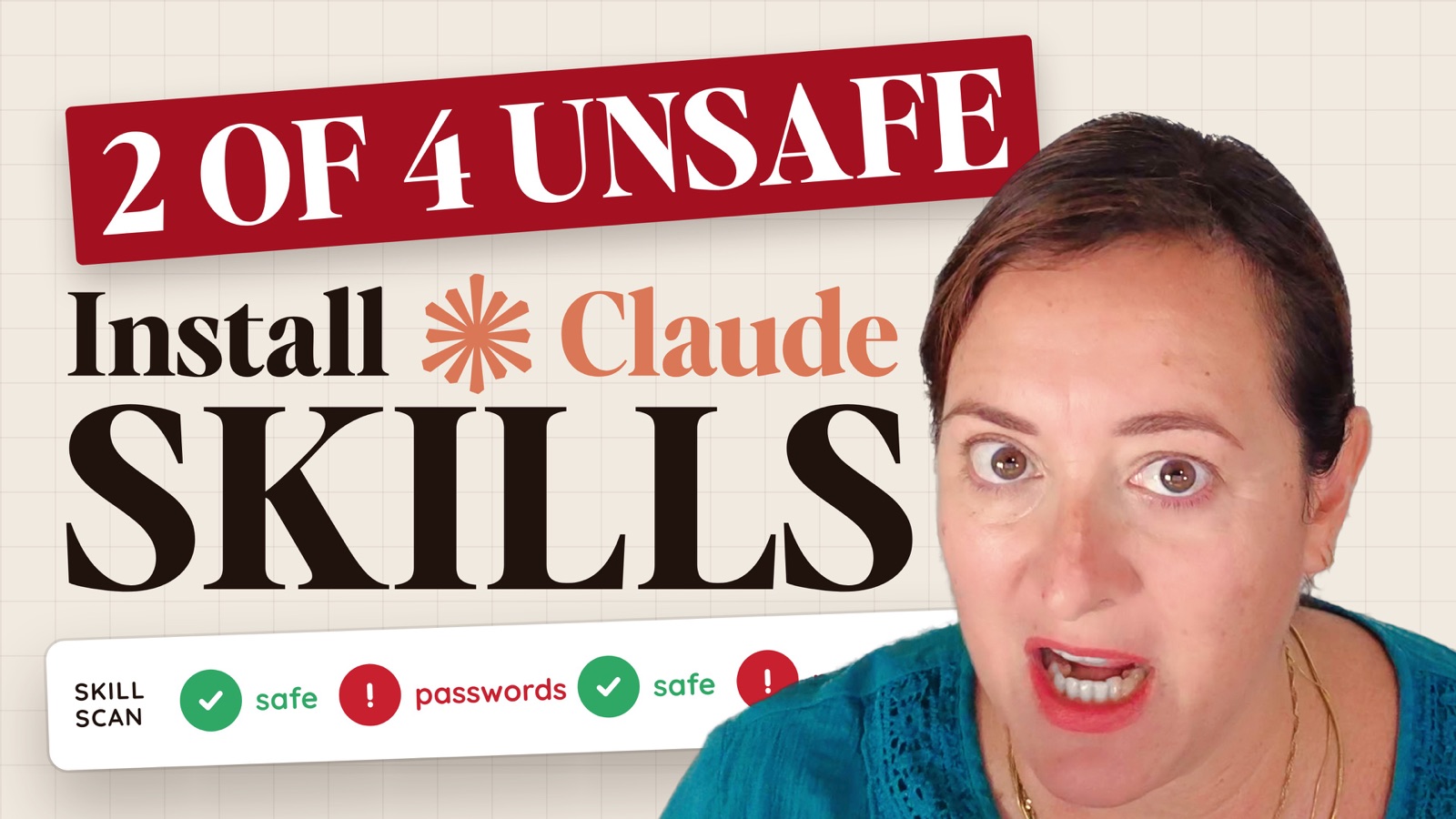
Before I installed four popular community skills into my Claude Code, I ran one free safety check on them. Two of the four were trying to reach my passwords.
Of the most-watched videos on installing Claude skills, not one mentions safety in its title. I checked. And I say that as someone who absolutely loves skills. I've built more than 800 websites since 1993, and installing skills is one of the easiest upgrades I've made to how I work. But a skill is a set of instructions your AI follows on your own computer, so where it came from really matters.
By the end of this post you'll know how to install skills in Claude Code the safe way, and you'll have the three I'd add first: the one that checks every other skill, one that somebody sent you, and one that Claude builds for you, live, from a YouTube video you've been meaning to act on for ages. That last one surprised me. I'll show you exactly what it found, further down.
Quick answer: To install a skill in Claude Code, download it (usually a zip file), then ask Claude to scan it first with NVIDIA's free SkillSpector scanner and tell you in plain English what it found. If it comes back safe, tell Claude to go ahead and install it, and it does the rest. You can also add skills in the Claude desktop app under Settings, Customize, Skills, which makes them available everywhere you use Claude, but that screen doesn't scan anything, so scan first either way. Skills you install through Claude Code live on your own computer, so keep that folder synced to a cloud drive you own, like Google Drive or Dropbox. I'm Chantal Edouard-Betsy, founder of heyCEOflow, and this is how I install every skill I use.
You don't need to be technical for any of this. Every step below is me typing a normal sentence to Claude. If you can send a WhatsApp, you can install a skill.
In this blog
- What is a skill in Claude Code?
- Why I check every skill before I install it
- How to install SkillSpector (just ask Claude)
- How to install a skill someone sent you
- The new way: Settings, Customize, Skills
- Where your skills live, and how to back them up
- How to make a skill from a YouTube video
- Two more skills I use in my own business
- The rule: anything you do twice should be a skill
- FAQ
- Key takeaways
- Want skills like these set up for you?
What is a skill in Claude Code?
A skill is a recipe your AI follows so it does the same job the same way every time, and hopefully gets the same results every time. It's an easy way for Claude to know the recipe without having to ask you each time.
Think of the recipe card your gran kept in the kitchen drawer. Nobody re-explained the method every Sunday. The card did that. A skill is that card, written for Claude: the steps and what good looks like, so you stop typing the same long explanation into a fresh chat every week.
The first skill I'd make sure you have is Anthropic's own Skill Creator, which helps Claude write skills properly. I set it up step by step in my AI designer video. To check whether you already have it, open the Claude desktop app, go to Customize, then Skills, and switch the view to Yours. If Skill Creator is in that list, you're good to go.
New to Claude Code altogether? Start with my getting started video first, then come back here.
Why I check every skill before I install it
Safety first, people. Before you start installing skills willy-nilly, from who knows where, doing who knows what in your Claude and on your machine... buyer beware.
Skills get shared all over the place now, and most of them are lovely. Some aren't. And because a skill tells Claude what to do on your computer, a dodgy one can do things you'd never agree to if you could see them.
That's why I run a scanner called SkillSpector, from NVIDIA, before anything goes in. It reads the skill and flags anything you should know about, including things that might be running hidden inside it. Mainly I want to know two things: does it touch any of my passwords, and does it send any of my data anywhere?
The first time I ran it, on four skills I was about to install, two of them were trying to reach my passwords. Two out of four. That's the whole reason the scan comes first.
So that's skill number one of the three. Skill number three, the one Claude builds from a YouTube video, is coming. First, let's get the bodyguard in.
How to install SkillSpector (just ask Claude)
You've got two options, and neither involves code.
Option 1: give Claude the link to SkillSpector on GitHub and ask it to install it.
Option 2: just ask. This is the exact sentence I use:
"Hey Claude, can you check if NVIDIA's SkillSpector is installed, and if not, install it for me?"
Claude goes off, checks whether it's already there, and installs it if it isn't. When I ran it on camera, it came back and told me SkillSpector was already installed. Lovely. That's all there is to it.
How to install a skill someone sent you
This is the one most people get wrong, because the temptation is to double-click and go. This is the order I follow every single time.
- Download the skill. It usually arrives as a zip file. Leave it in your Downloads folder.
- Ask Claude to scan it. I type: "Hey Claude, I have a skill in a zip file in my downloads folder. Can you scan this with SkillSpector and tell me in plain English what is found?"
- Read what comes back. Claude lists anything flagged for your attention, and tells you what it did and didn't check.
- Say yes, or walk away. At the end, Claude asks whether you want it to go ahead and install the skill. If you're happy, say yes and it installs it.
The skill I scanned in the video scored 6 out of 100, which means very low risk. It passed SkillSpector's basic checks, and the only flag it raised turned out to be a false alarm. So I said yes and Claude installed it.
If you scanned a skill earlier and you're coming back to install it later, you can skip straight to the install:
"Hey Claude, please install the skill in my downloads called YouTube to Skill dot zip. It's already been scanned by SkillSpector. Go ahead and install it."
And that's skill number two in. Did you notice its name? YouTube to Skill. It's the one that grabs a video's transcript, does some deep research and writes a brand new skill out of whatever that video teaches. A skill that creates skills. Bit of an inception moment, I know, but go with me on this one. I'll run it for you in a minute.
Want that exact skill? The YouTube to Skill skill I built for this video is free: grab it here. And yes, scan it with SkillSpector before you install it. Even mine. Especially once you've read this post.
The new way: Settings, Customize, Skills
There's a newer way to install skills that only recently launched in the Claude desktop app. To find it:
- Click your name at the bottom of the Claude desktop app and open Settings.
- Go into Customize. You'll see Connectors, Skills and Plugins.
- Open Skills. You land on the Discover tab, where you can browse new skills. The Yours tab shows the skills you've installed yourself.
- Click Add. You'll get four choices: Upload a Skill, Create a Skill, Create with Claude, or Record Your Screen.
Two things to know before you use it.
First, because this feature is so new, the skills you already have in Claude Code may not show up in that list yet. You might need to convert your existing Claude Code skills before they appear there.
Second, and this is the big one: this screen doesn't scan skills first. It just uploads them. So I still run every skill past SkillSpector before it goes in, wherever I'm installing it.
Where your skills live, and how to back them up
This is worth getting your head around, because the two ways of installing a skill put it in two very different places.
Installed in Settings: the skill appears everywhere you use Claude. Chat, Cowork, Code, your phone. It basically lives in Claude's cloud, for lack of a better word.
Installed through Claude Code: the skill lives locally, inside whatever folder you've set up as your Claude workspace on your computer. That's a little bit more secure. If you don't want all of your skills, and all of the data that goes with them, going up into Claude itself, install the old-school way through the Code tab and keep them on your own machine.
And if you do keep them on your machine, back them up. I highly recommend your Claude workspace syncs to a cloud service you own: your Google Drive, your Dropbox, whatever you use. Bear in mind, once you've invested real time building skills and running your business through Claude, if your machine goes bye-bye, you're in big trouble.
Right. Bodyguard in, backups sorted. Time for the bit I promised you at the top.
How to make a skill from a YouTube video
First, I opened a brand new session, so you could see the skill was really doing the work and not just remembering our earlier chat. Then I pasted in a YouTube video I'd watched the morning before, and typed:
"Hey Claude, please use the YouTube to Skill skill and turn this YouTube video into a skill that I can use with you, please."
What the skill did next, step by step:
- It loaded the YouTube to Skill skill and grabbed the video's transcript.
- It pulled the method out of that transcript.
- It went looking across everything else the same creator has published on that same method.
- Where it found more videos or more detail, it used them to fill the holes, so the final skill pulls the whole series together, not just the one video I gave it.
The video was Wes McDowell's plan for getting clients from YouTube. And then it did something I didn't expect.
Claude found that Wes disagreed with himself. In March 2026 he taught a 5-part script. In his newer November video, he says to drop rigid formulas. Claude spotted the clash, pointed it out to me, and went with the newer advice. The skill it wrote says a hook has 3 jobs, makes the preview and the story optional, and links back to the other videos it used as sources.
I'd have watched both videos and never noticed. Would you?
Because the skill is about YouTube, it needed my vidIQ connector, which was already set up. Claude showed me an outline of Wes's 6-step plan, then asked: shall I make this into a skill? I said yes. It named the new skill YouTube Client Plan, and now all I have to say is "plan my YouTube videos" or "title and thumbnail for this video", and Claude follows Wes's method for me.
It even pushed back on me. Because it knows my business and my offers, its first ideas were a pile of GoHighLevel website builder search terms. It asked whether that's really the direction I want, since those videos could attract other GoHighLevel service providers instead of my ideal clients. Fair point. That's your reminder to give your skills your goals.
Then I tested it properly. New session again, and I asked Claude to use the YouTube Client Plan skill to come up with video ideas for my ideal clients: face-of-the-business entrepreneurs who want to do their online business better and start learning AI. It came back with video ideas, each with its monthly search volume and difficulty, plus title and thumbnail ideas. Two of them were "how to build a business that runs without you", which is what I've done, and "how to be a solopreneur without being chained to my desk". That's me too.
Now think about how many times you've watched something on YouTube, thought "I should really do that", and then done nothing with it, because who has the time? That's what this skill fixes. Every method you've watched, and every course you've paid for over the years, can become something Claude actually does for you.
That's all there was to creating a skill. Really. Don't get too stuck in the weeds, as it were. Just talk to Claude. And if you don't know how to do something, ask it: "How do I use this skill I just installed? What do you need from me?"
Two more skills I use in my own business
The training finder. I have a skill that went through my inbox, my Google Drive and my Dropbox and found every course and masterclass I've ever signed up for or paid for, and probably never used or implemented. It put all of it in one place. Now I can ask Claude to write me a re-engagement email nurture campaign, and it uses that collection like a skill to do the job. So, how many courses and programmes have you bought and never used?
The new client folder. When I onboard a new client, I just say, "Hey Claude, go and create a client folder for Susie Q," and it's done. When Claire, my AI designer, needs to design that client's website, all of Susie Q's things are already there, ready for her. I haven't lifted a finger.
Any job you can explain to Claude, it can do.
The rule: anything you do twice should be a skill
In my opinion, anything you need to do two or more times should be a skill. It's as simple as that. Life is too short to be doing repetitive tasks that are very easy for AI to do for you.
Your back office is everything that happens after someone says yes: the follow-up, the booking, the invoice, the course access. Right now, that's probably you. Break all of it down into tiny, repetitive tasks and you'll be amazed how easy each one is to turn into a skill.
Then string those skills together, and you'll be amazed how much of your work process you can hand over to an AI team member.
That's the next step. A skill teaches Claude Code how to do one particular thing. Then you hand that skill to someone, and in my case that's an AI team member, with a name and with rules. You can see me set one up from scratch in my AI designer video, and my next video goes deeper on creating your own named agent.
FAQ
Is it safe to install Claude skills from GitHub or a Facebook group?
Not automatically. When I scanned four popular community skills before installing them, two were trying to reach my passwords. Scan every skill with a tool like NVIDIA's SkillSpector first, read what it flags, and only then install it.
Do I need to know how to code to install skills in Claude Code?
No. Everything in this post is done by typing a normal sentence to Claude, like "scan this with SkillSpector and tell me in plain English what is found" or "go ahead and install it". If you get lost, ask Claude what it needs from you.
What's the difference between installing a skill in Claude Code and in Settings?
A skill added in Settings, Customize, Skills is available everywhere you use Claude, including Chat, Cowork, Code and your phone, because it lives in Claude's cloud. A skill installed through Claude Code lives in your workspace folder on your own computer, which is a little more private. Back that folder up to a cloud drive you own.
Why don't my existing skills show up in Settings, Customize, Skills?
The feature is very new, so skills you already installed through Claude Code may not appear there yet. You may need to convert them before they show up in that list.
Does the Settings skills screen check skills for safety?
No. It just uploads whatever you give it. Scan the skill with SkillSpector first, wherever you plan to install it.
Key takeaways
- A skill is a recipe Claude follows so it does a job the same way every time, without you re-explaining it.
- Scan every skill before you install it. Two of the four community skills I checked were trying to reach my passwords.
- Install SkillSpector by asking Claude, then ask Claude to scan each new skill and explain the results in plain English before it installs anything.
- Settings, Customize, Skills puts a skill everywhere you use Claude but doesn't scan it. Claude Code keeps skills on your own computer, so back that folder up.
- Anything you do twice should be a skill, and the YouTube to Skill skill turns any training video into one.
Want skills like these set up for you?
I'm putting skills like these, already set up and connected to your business, inside The Beach Club. People on the waitlist hear first.


