How do I enable the new HighLevel Unified Client Portal?
Updated 4 August 2026 by Chantal Edouard-Betsy.
HighLevel has rebuilt its client portal, and if you want to enable the new HighLevel Unified Client Portal you really only need to know one button and who is allowed to press it. That second part trips people up. Whether you can switch it on yourself depends entirely on whether you are direct with HighLevel or sitting on someone else's white-label. I run my whole business, heyCEOflow, on the HighLevel engine, so I got the new portal the moment it landed and branded mine over a weekend. Here is how you turn yours on, make it look like you, and sort the one thing the update quietly broke.
Quick answer: To enable the new HighLevel Unified Client Portal, go to Client Portal, then Dashboard, and click the "Try the new client portal" button in the top right. That switches the new view on so you can preview it, tweak it, and roll it out to all your clients when you are ready. It is a Labs feature. If you are direct with HighLevel you do this yourself in your own account. If your platform is white-labelled with another agency, they control Labs, so you send them a short request and they flip it for you. I am Chantal Edouard-Betsy, founder of heyCEOflow. Once it is on, you brand it in Client Portal settings, and my done-with-you migration, The Seamless Switch, moves your whole business into one branded portal for you.
Most people asking this assume the new portal is a setting buried three menus deep, or worse, a paid add-on. It is neither. It is one button in an obvious place. The real confusion is about permission, not location, and that is the bit worth getting straight before you go hunting.
In this blog
- What actually changed in the new portal
- How to enable it (two ways, depending on your setup)
- How to brand it with the built-in settings
- Did the update break your course pages?
- Where the settings stop
- FAQ
- Key takeaways
What actually changed in the new portal
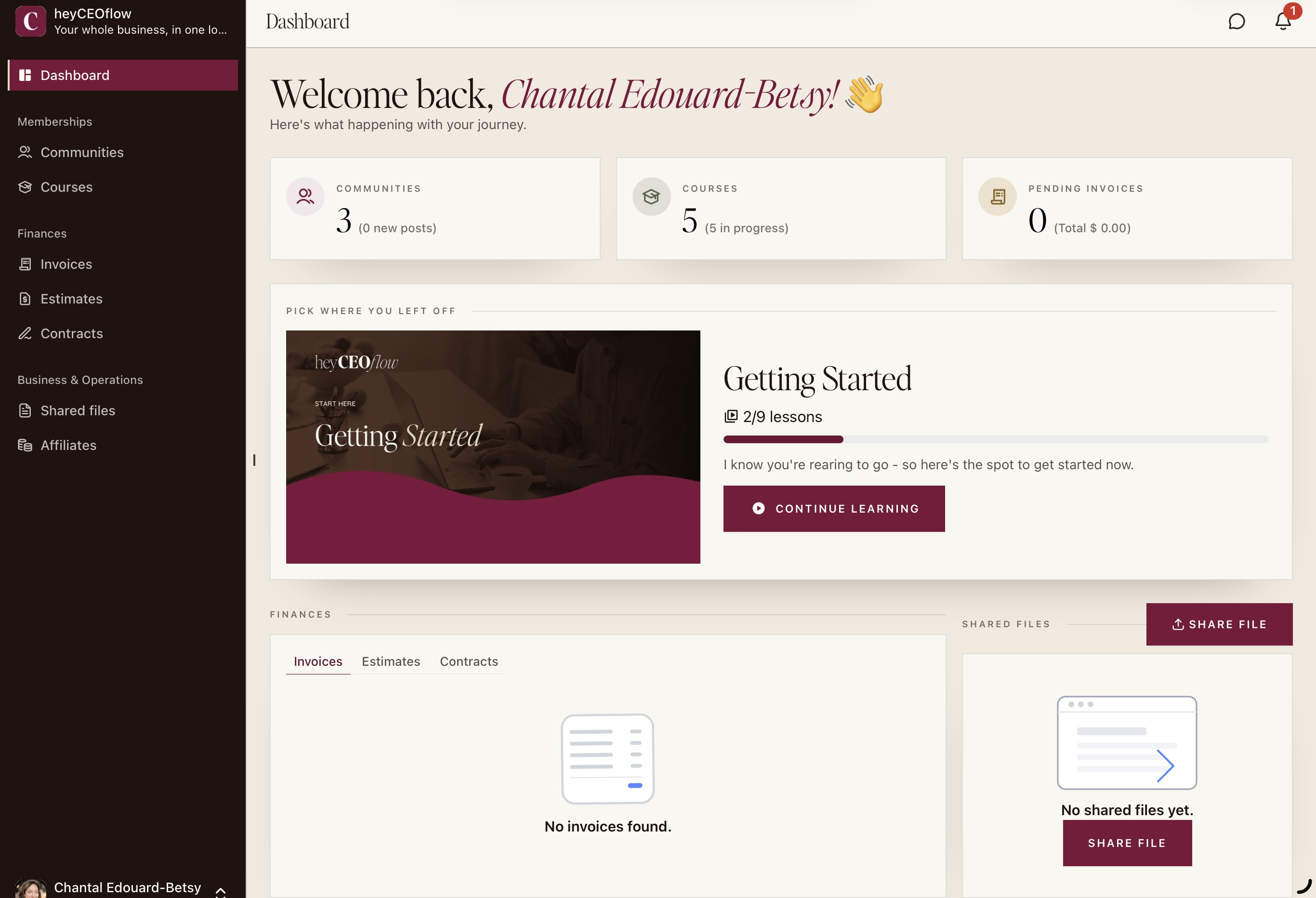
HighLevel did not tweak the old client portal. It rebuilt it. The new Unified Client Portal pulls everything a client touches into one home: their courses, their memberships, and now their invoices, estimates, contracts and shared files too. One login, one place, instead of a course area over here and a payment link over there.
That "unified" word is the whole point. Before, the portal was really just the course hub. Now it is meant to be the entire client-facing side of your business under one roof. And here is the part people miss: if you run a service business that sends contracts and invoices but has no course at all, this update finally gives you a branded home too. Those finance surfaces are new.
It is a genuine step up. It also looks, straight out of the box, exactly like every other HighLevel portal on the planet. Hold that thought.

How to enable it (two ways, depending on your setup)
The new view sits behind a Labs toggle, and a single button turns it on. Where you find that button is the same for everyone. Who is allowed to click it is not.
If you are direct with HighLevel (your own account). You can do this yourself right now. Go to Client Portal, then Dashboard, and look in the top right for a button that says "Try the new client portal." Click it. The new view switches on in preview mode, so you can have a proper look, brand it, test it on a dummy client, then enable it for everyone when you are happy. Nothing changes for the people logging in until you say so. Poke around freely.
If you are on a white-label (with another agency, not HighLevel directly). You cannot reach this one, because Labs sits at a level your agency controls. So ask them. To skip the back and forth, name the exact action in your message so there is nothing left to interpret. Send them this, word for word:
Hi, I have seen HighLevel has released the new Unified Client Portal. Please can you switch it on for my account? Go to Client Portal, then Dashboard, and click the "Try the new client portal" button in the top right, that turns the new view on. Let me know if you need anything from me.
That is the whole difference. Direct, you press the button. White-label, your agency presses it. Same button, same place, different hand on it.
How to brand it with the built-in settings
Once you are on the new view, you can make it look like your brand instead of the factory default, and you can do it with no code at all. It lives under Memberships, then Client Portal, then Settings, then Branding. Here is what is worth setting, and the traps I hit so you do not have to.

Brand Color One. This is the big lever. It drives most of the portal's colour, so give it your actual primary brand colour, not something in the same postcode. Then set Brand Color Two to your secondary.
Your logo. Upload it square. One to one, around 200 by 200. This caught me out. The portal stretches a non-square logo to fill the slot rather than cropping it, so a wide logo comes out squashed. Feed it a square file and it behaves.
The portal image on the login screen. This one wants a tall portrait, not a logo. It fills roughly half the login page and it hides on mobile, so use a lovely vertical photo of you or your work, near an 8 by 9 shape. This single field does more for the "oh, this feels expensive" reaction than almost anything else on the list.
Favicon, portal name, support email. Small, but set them all. The tiny details are the ones that quietly say a real person runs this.
Then go into App Permissions and switch off whatever you do not use. No invoices inside the portal? Turn the tab off. An empty section reads as unfinished. A tight portal showing only what you actually offer reads as deliberate.
Do those five things and you are already ahead of most portals out there. The colours will be yours, the login will feel like your brand, and your clients will notice the difference the second they log in.
Did the update break your course pages?
Here is the one that catches people off guard. When the new portal rolled out, it quietly stopped custom styling from rendering on a lot of course pages. The custom CSS you had added at the course level still saves and sits there, but the new portal never loads it, so pages that looked right on the Friday came back plain on the Monday. If your course pages suddenly look wrong, that is almost certainly why.
It is fixable. The styling now has to live at the portal level rather than per course, because your course pages render inside the new portal shell. Move it there and it renders again, with a bonus: one stylesheet now covers every course instead of one each. One warning though. If you copied a stylesheet off someone else, expect it to rot every time HighLevel touches the portal, and it touches the portal often. That is less a one-time fix and more a thing that needs keeping alive.
Where the settings stop
The built-in fields get you a long way. They also stop at a clear line. They will colour the big obvious elements and drop your logo in, but they will not reach the greys HighLevel leaves sitting in the corners, they will not change the fonts, and they will not touch the shapes. Stock is stock. Past the settings you are into custom work at the portal level, and that is exactly where mine goes further than the panel allows.

I branded my heyCEOflow portal end to end over a weekend and posted the screenshots in one of the big HighLevel groups. It clearly struck a nerve. Mario Aldayuz, who co-founded a company off the back of eight years inside HighLevel, does not hand out compliments lightly, and he had generous things to say about it. I bring that up not to show off, but because the reaction told me something plain: most people have never seen a HighLevel portal that actually looks designed, so when they do, it stands out hard.
Here is the honest bit though. A beautiful login screen sitting on top of a business scattered across six platforms is lipstick. The bigger win is having your whole business in one branded home. Your site, your courses, your emails, your payments and now your contracts, all under one roof, all looking like you. That is the job I actually do. My migration framework, The Seamless Switch, moves your whole business across into heyCEOflow and brands it end to end, portal included, so what your clients log into looks like the brand you have spent years building.
FAQ
How do I enable the new HighLevel Unified Client Portal?
Go to Client Portal, then Dashboard, and click the "Try the new client portal" button in the top right. It is a Labs feature. Clicking it switches the new view on in preview so you can brand and test it before enabling it for all your clients. If you are direct with HighLevel you do this yourself; if you are on a white-label, your agency has to do it because they control Labs.
Why can't I find the "Try the new client portal" button?
Almost always because you are on a white-label account rather than direct with HighLevel. Labs sits at the agency level, so the button is hidden from sub-accounts and only your provider can turn the new portal on. Send them a short request naming the exact steps (Client Portal, then Dashboard, then the top-right button) and they can flip it for you.
Can I customise the HighLevel client portal without code?
Yes, to a point. In Client Portal settings you can set two brand colours, a logo, a favicon, a login-screen portal image, the portal name and support email, and you can switch off sections you do not use. That covers the obvious elements. Fonts, the leftover grey areas and the shapes are not exposed in the settings and need custom work at the portal level.
Why did my HighLevel course pages lose their styling after the update?
The new Unified Client Portal stopped loading custom CSS set at the course level. The code still saves, but the new portal shell never applies it, so previously styled course pages render plain. The fix is to move that styling up to the portal level, where the course pages now live, so it renders again across every course at once.
What's new in the HighLevel Unified Client Portal?
It brings everything a client interacts with into one place: courses, memberships, and now invoices, estimates, contracts and shared files. The old portal was mostly a course hub; the new one is meant to be the whole client-facing side of a business under one login, which means service businesses with no course finally get a branded client home too.
Do I need to be on heyCEOflow to get the new portal?
No. The Unified Client Portal is a HighLevel feature, so any HighLevel account or white-label can enable it. heyCEOflow is my own platform built on the HighLevel engine, which is why I had the new portal the day it shipped. If you want it branded properly and your whole business moved into one place, that is the done-for-you service I offer on top of the platform.
Key takeaways
- The new HighLevel Unified Client Portal is a Labs feature, turned on by the "Try the new client portal" button in Client Portal, then Dashboard, top right.
- Direct accounts flip it themselves. White-label users have to ask their agency, who controls Labs. Same button, different hand on it.
- The built-in branding (Brand Color One, a square logo, a tall portrait login image, App Permissions) gets you most of the way with no code.
- The update stopped per-course custom CSS from rendering. Styling now belongs at the portal level, and copied stylesheets rot as HighLevel keeps changing the portal.
- The settings stop at stock. The whole-business, fully branded version is a migration, The Seamless Switch.
Want it done properly, and your whole business moved in?
A branded portal is lovely, but the real win is your site, courses, emails, payments and contracts all living in one branded home. Tell me what platform you are on and what you have built, and I will map the move for you. Free, honest, and if it is not an easy switch I will say so straight.


